

Axhill
-
Posts
68 -
Joined
-
Last visited
-
 I need to translate and edit an existing PDF. I opened this PDF document in APu2 and I am editing it. That document did not have its own master page, so I added a master page. Added a page numbering on this, but the page number is behind the existing layout and is therefore invisible. Now how can I put the page number field at the very front? (so before the existing layout) Apparently I can't specify that on the master page? Update:: I found a solution: For each page, I select the existing layout and put it at the back. Problem solved!
 -
Sometimes no preview of AF files
Axhill replied to Axhill's topic in Affinity on Desktop Questions (macOS and Windows)
thanks for the help! -
Sometimes no preview of AF files
Axhill replied to Axhill's topic in Affinity on Desktop Questions (macOS and Windows)
They turned out to be files created with a previous version AF. In my current version, settings already had thumbnails checked. Just resaving didn't help, I had to rename the file, but then both the icon thumbnail and the preview were visible. -
In the windows of my Mac where I see the .afpub and .afdesign files, some of those files (most of them) have an icon with reduced image and a thumbnail (preview). Why in other AF files do I only see an AF icon? Might that have to do with the version in which I originally created the document or is it something else?

-
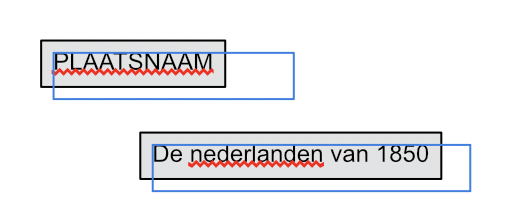
I want to change the text style "Box". Now the background is gray and the border is black. I want the background to be white and no border, also I want the box tighter around the text. Can't find how and where to adjust this.
-
Affinity disk usage warning???
Axhill replied to Axhill's topic in Affinity on Desktop Questions (macOS and Windows)
In the meantime, I had done some work on the document, but now all are the same in terms of content: 1. Document with only linked parts, size 135.6 MB 2. Document with PDF maps, the rest the same as under 1 (so everything linked), size 776 MB 3. Document as under 2, but now with all parts embedded, size 1.23 GB Download speed 1. 1 m 41 s 2. 1 m 10 s 3. 1 m 13 s Activity monitor (memory( 1. 23.70 GB 2. 22.80 GB 3. 23.87 GB when opening each file I got the disk limit warning So conclusion: it does not seem to make any difference how you format or save the document. Advantage linked parts: you can always change something in the individual part and it will be copied to your document. -
Affinity disk usage warning???
Axhill replied to Axhill's topic in Affinity on Desktop Questions (macOS and Windows)
Update: It does not matter at all whether the parts are embedded or linked. The download time of both is the same. File size embedded is 1.23 GB and with linked parts 776 MB. Activity monitor gave a memory usage for Embedded 23.74 GB and for Linked 22.68 GB With both documents I was now getting a Disdk Limit Warning. So it all makes no difference... -
 thomaso reacted to a post in a topic:
Affinity disk usage warning???
thomaso reacted to a post in a topic:
Affinity disk usage warning???
-
Affinity disk usage warning???
Axhill replied to Axhill's topic in Affinity on Desktop Questions (macOS and Windows)
Apparently I don't make it very clear how I put the document together, therefore a further explanation. The project or document (whatever you want to call it) is a book of bicycle routes. In addition to some introductory pages, the document now contains about a hundred pages of a bicycle map. On each page is text (with tips and explanations) plus some icons that point to a POI, give directions, etc. These icons are linked. Also on one such page is a bicycle map. In my first setup, this bike map was a PNG file (image) that contained the same icons that were also linked plus place names. So such a map only could contain as many as 10-15 linked items. This caused very slow saving and frequent Disk Limit Warning. For the revised document, I have now created an image in PDF format for each page of the bike map with its linked parts. Now every page except for the information that was already on it shows the bike map in PDF that is linked. So now the number of linked parts per page is about 6, so in the old document there were about 10-15 linked parts. -
thomaso reacted to a post in a topic:
Affinity disk usage warning???
-
Affinity disk usage warning???
Axhill replied to Axhill's topic in Affinity on Desktop Questions (macOS and Windows)
@thomaso No, the whole document does not contain any embedded files. The roadmap required for the document is a file I create with linked parts, but that is of no consequence because I export it again as a PDF. So the project document only imports an image in the PDF format and it is thus linked. With about 100 maps (so 100 PDF images) I save about 500-600 linked parts and you can notice that! By the way, I think as a trial I am going to add embedded parts to the whole document. Am curious to see how big the document file gets then and if it saves a lot of time downloading and saving. -
Oufti reacted to a post in a topic:
Affinity disk usage warning???
-
Affinity disk usage warning???
Axhill replied to Axhill's topic in Affinity on Desktop Questions (macOS and Windows)
@Dan C Since I finished the first part of the project - but there are several more parts to follow - I set up the whole project again anyway. I created all maps with their additions (markers, place names, directions, etc.) separately, filed them away as pdfs and in the new project imported these maps again. This drastically reduced the large number of linked parts. Probably because of this, the file is again just saved quickly and I also no longer get Disk Limit Warnings. Conclusion: my procedure was not the right one. Reducing the number of linked components seems to be the solution to my problem. Thanks for your effort. Update: Although the file can now be saved quickly, in Activity Monitor I see that Affinity Publisher 2 still requires 17.57 GB of internal memory. -
Old Bruce reacted to a post in a topic:
Affinity disk usage warning???
-
Affinity disk usage warning???
Axhill replied to Axhill's topic in Affinity on Desktop Questions (macOS and Windows)
@Dan C I got the disk warning again, but I didn't pay attention to it anymore. I will send the complete file to you one of these days. Some comments: I was surprised that it took so long to save the file after a change. A 136 MB file written from the Mac to its SSD always took over 3 minutes! Maybe I had the wrong approach with this project. On every page with a map I added elements such as markings, place names, etc. Sometimes there were 15-20 elements on such a page! I think I could have worked faster if I had first made each map separately with its additions and then saved that map as a JPG or PDF. Then I would have only had text and one image on each page. Update: File has just been sent -
 Dan C reacted to a post in a topic:
Affinity disk usage warning???
Dan C reacted to a post in a topic:
Affinity disk usage warning???
-
Affinity disk usage warning???
Axhill replied to Axhill's topic in Affinity on Desktop Questions (macOS and Windows)
After restarting the Mac and reopening the file, I got no disk warning. Once I finish the project, I will send you the complete file. I still have to create the hyperlinks and then I am ready (for now) -
Affinity disk usage warning???
Axhill replied to Axhill's topic in Affinity on Desktop Questions (macOS and Windows)
Thank you. I forgot the used disk space that activity monitor shows.
-
Affinity disk usage warning???
Axhill replied to Axhill's topic in Affinity on Desktop Questions (macOS and Windows)
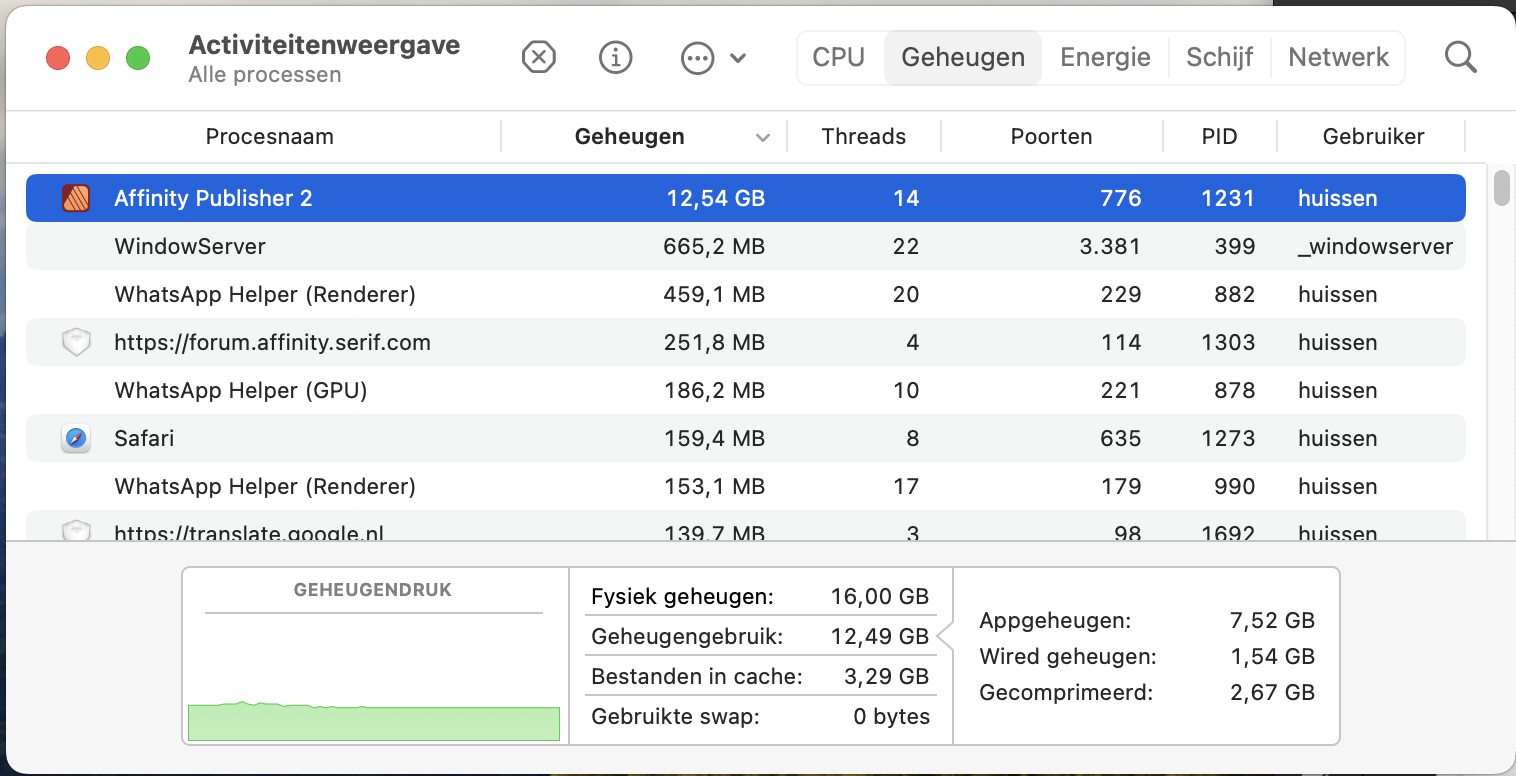
Thank you for your explanation. I restarted the Mac and the activity monitor shows that Publisher 2 is now using 12.54 GB of RAM.
-
Affinity disk usage warning???
Axhill replied to Axhill's topic in Affinity on Desktop Questions (macOS and Windows)
Still, I don't quite understand what is happening. Is it sometimes just a bug in Affinity Publisher 2? The folder containing my entire projects - i.e. the Publisher documents and the images folder is 833 MB in size and has 240 components. I have set the Disk Warning Limit to 52 GB (!!!) and still I get a warning??!? I understand that I shouldn't worry and can just continue with the project, but I still find it very strange....